
Getting blocked by a rate limit mid-task is probably the most frustrating moment for any Claude user.
My old habit was to only check the usage on the Settings page once I got blocked, and then discover that my extra usage was already at 84% and my seven-day usage was past halfway too. I kept thinking: wouldn’t it be great if this number could just be on the screen?
So I built a Chrome Extension to solve this. It’s called “Claude Usage Nyan,” with an orange tabby crouching in the toolbar. One click and you know how much of your quota is left.
What It Does
Once installed, there are three places to see your usage:
The orange cat icon in the toolbar shows a little badge that auto-rotates every four seconds: how much of the five-hour session you’ve used, how much of the seven days, how many extra credits remain, and your real-time spending. Green means safe, yellow means caution, orange means almost there, red means about to blow up. No need to click anything. A quick glance tells you everything.
Click to open the popup and you’ll see the full usage card. The top half shows Anthropic’s official numbers: the five-hour session percentage, the seven-day usage percentage, and the used-versus-limit for extra usage, each with a reset countdown. The bottom half is real-time token tracking: how many input tokens that last conversation used, how many output tokens, how much it cost, and which model was used, all laid out.
There’s also a semi-transparent floating status bar in the bottom-right corner of the claude.ai page, permanently displaying a usage summary. Click the cat head to collapse it.
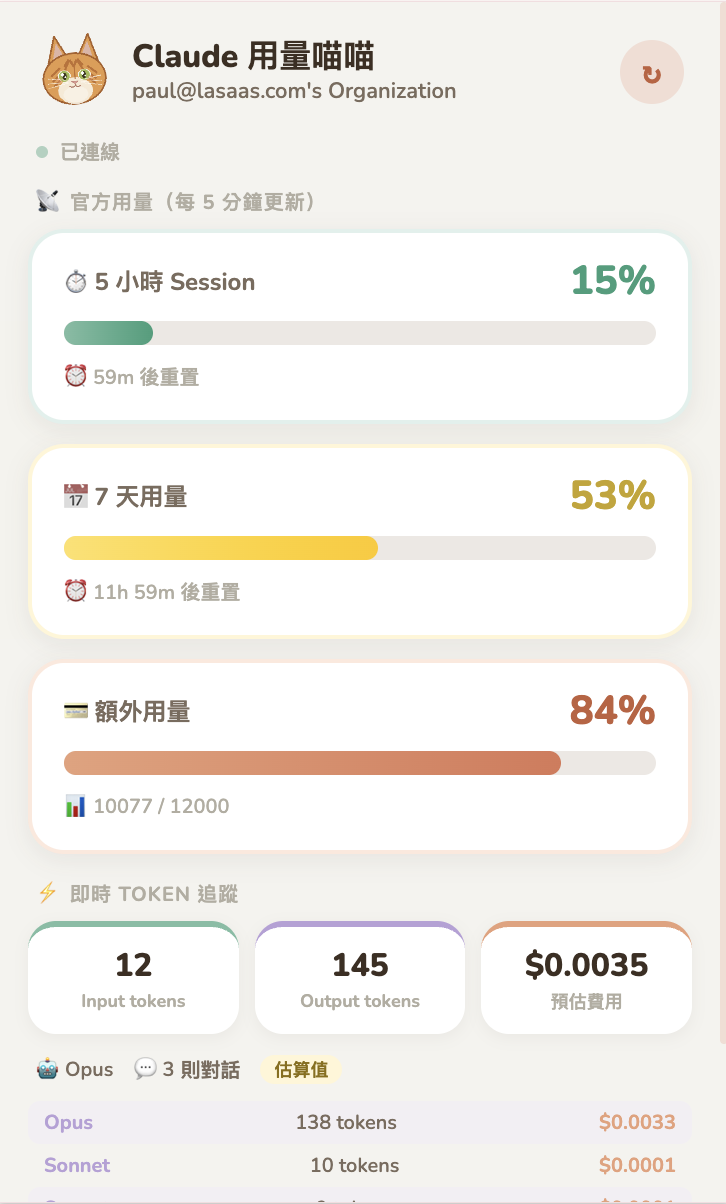 The full view when the popup is opened: the top half shows official usage, the bottom half shows real-time token tracking.
Two Channels, Seeing the Discrepancy
What makes this tool most different from other trackers is that it runs two data channels in parallel.
The first is the official one. The Extension calls claude.ai’s usage API once every five minutes, and the numbers it gets back are exactly the same as what you’d see by visiting the Settings page yourself. This number is authoritative, but it has latency. Anthropic’s updates aren’t real-time, so sometimes even when you’ve clearly used a lot, the percentage doesn’t move.
The second is real-time estimation. The Extension intercepts every API call from your conversations with Claude within the claude.ai page, estimating input tokens when the request goes out, accumulating output tokens as the response streams back, and then calculating the cost based on the model’s pricing. This is real-time, but it’s an estimate, so it will have a margin of error compared to the official numbers.
With the two placed side by side, you can observe for yourself how much the official percentage differs from the tokens you’ve actually burned through. One of the purposes of building this tool was to make this discrepancy visible.
I Did Some Research Before Getting Started
Before I started writing any code, I investigated the existing tools on the market.
The result: there are already plenty of these little tools. I found more than ten of them alone. But nearly all of them are native macOS apps that require downloading a .dmg to install, leaving Windows and Linux users with no options. And most of them do only one of either official usage tracking or real-time token calculation. Nobody had put both together. Every interface was in English, with no localized options for the Asian market at all.
So my positioning was clear: make it a Chrome Extension so it’s cross-platform, run both channels in parallel, and make it Chinese-first. Later I also added English and Japanese interfaces, with Chrome automatically switching based on the browser language.
A Few Pitfalls I Hit During Development (Skip if you’re not into the technical stuff)
I completed the entire development through conversations with Claude, and the process wasn’t always smooth sailing.
The first pitfall was the API format. Anthropic’s usage API has no public documentation, so I could only guess the format. The first time I connected to it, the popup spat out a blob of raw JSON. But that blob of JSON was itself the answer. I saw field names like five_hour.utilization and seven_day.resets_at, and immediately knew how to parse it. So “Claude” deliberately left a debug mode in the popup: if parsing fails, it just displays the raw JSON directly, so that even if the API format changes in the future, it can be quickly fixed.
The second pitfall was more interesting. A Chrome Extension’s content script runs in an isolated environment called the isolated world. I patched window.fetch inside it to try to intercept claude.ai’s API calls, but nothing got intercepted at all. It took some time to figure out: the isolated world’s window and the page’s own window are different objects. The solution was to use Chrome MV3’s world: "MAIN" setting to inject the interception script directly into the page’s context, then pass the data back to the isolated world’s bridge layer via a CustomEvent. One problem split into two layers to solve.
The third pitfall was the icon. It went through three iterations. The first version was too plain, the second was stuffed into a circle and didn’t look like a cat, and for the third I tossed in a photo of an orange tabby as a reference and specified that the “ears should splay outward, with an M-shaped marking on the forehead” before it felt right. This kind of thing is hard to describe with specifications. Giving one reference image is more useful than saying a hundred sentences.
Let Me Be Clear About the Limitations
Anthropic’s usage API has no public documentation, and the format could change at any time. If it changes, this Extension has to be updated to keep up; without anyone maintaining it, it’ll break. Real-time tokens are estimates, not exact numbers. English is roughly four characters per token, Chinese roughly 1.5 characters, which differs from Anthropic’s actual tokenizer.
It only tracks the claude.ai web version. If you use Claude Code CLI, that goes through a different channel, and this Extension can’t capture it.
The Extension needs to read claude.ai’s session cookie to access the API. All data is stored only locally in your browser, never sent to any external server, and is fully open source. But judging the risk yourself before installing any Extension is basic practice.
Installation is simple: clone the GitHub repo, enable Chrome developer mode, load the folder. Three steps. It supports Traditional Chinese, English, and Japanese interfaces.

💬 Comments
Loading...